For organizers
Run your event from sign-up to the door
Getting started
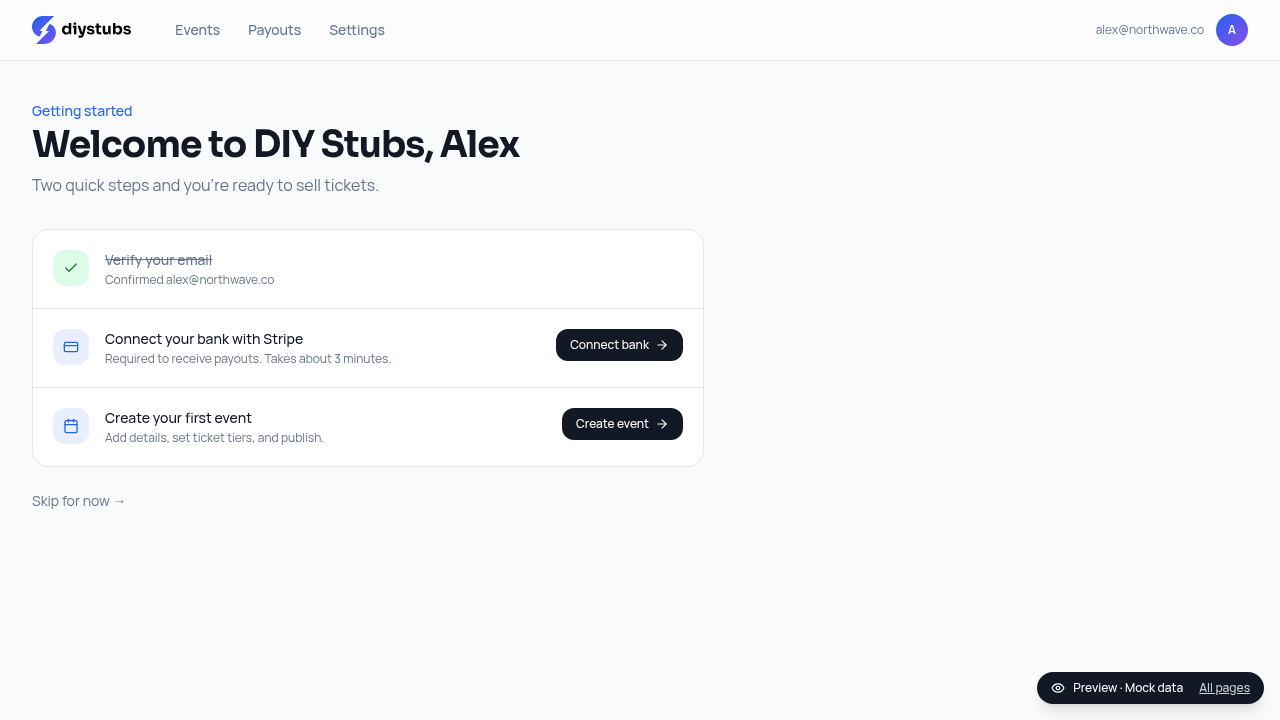
Sign up with your email and a password at diystubs.com/auth. After confirming your email, you'll land on a short onboarding screen with two steps:
- Connect your bank with Stripe. About 3 minutes through Stripe's secure onboarding. This has to be finished before you can publish an event, since that is how we get money to you.
- Create your first event. One form, no theme builder. You can build the whole thing and save it as a draft before you connect anything.
Creating an event
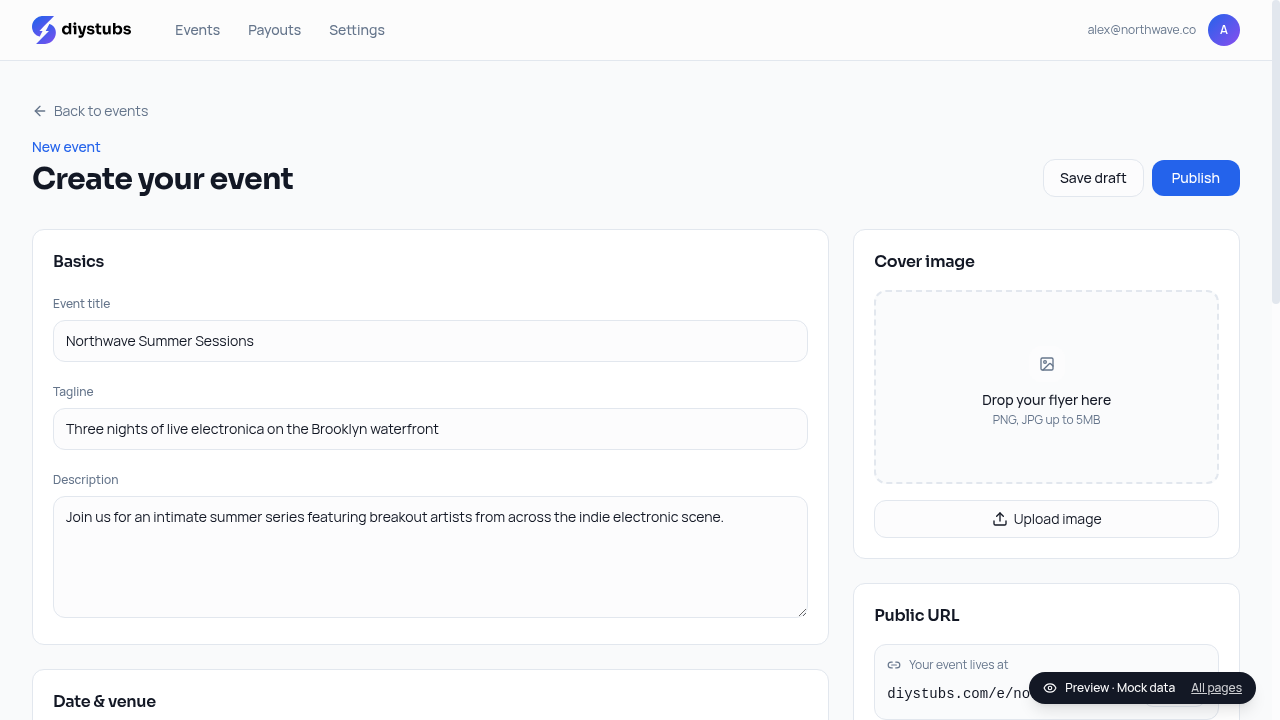
From your dashboard, click New event. You'll be asked for the basics that show up on your event page:
- Title, tagline, description: keep the tagline short.
- Date, doors, end time, timezone: auto-detected; double-check for late-night shows.
- Venue and address: appears with a map pin.
- Cover image: PNG or JPG up to 5MB.
- Public URL slug:
diystubs.com/e/your-event. Editable until you publish. - Fee settings: choose who covers the 3% platform fee, you or the buyer. If the buyer covers it, it shows as its own line at checkout.
- Contact info: an email address (required) and optional social links. Shown on your public event page and included in every email we send to your ticket holders so they can reach you with questions.
Save draft at any time, before or after you connect your bank. When you're ready, hit Publish. Publishing needs your Stripe bank connection finished first, and some events get a quick look from our team before the public URL goes live. The editor tells you which state your event is in, and we move fast. If you later change the title, description, artwork, photos, venue or logo on a live event, it goes back for another look. Ticket holders keep their tickets, QR codes, Apple Wallet passes and door scanning the whole time.
Before you price your first show
- Pricing tickets for your first show walks through what to charge and what you actually keep.
- How to structure ticket tiers covers early bird, GA and VIP without confusing buyers.
- Day of show checklist is what to have ready at the door.
Ticket tiers and capacity
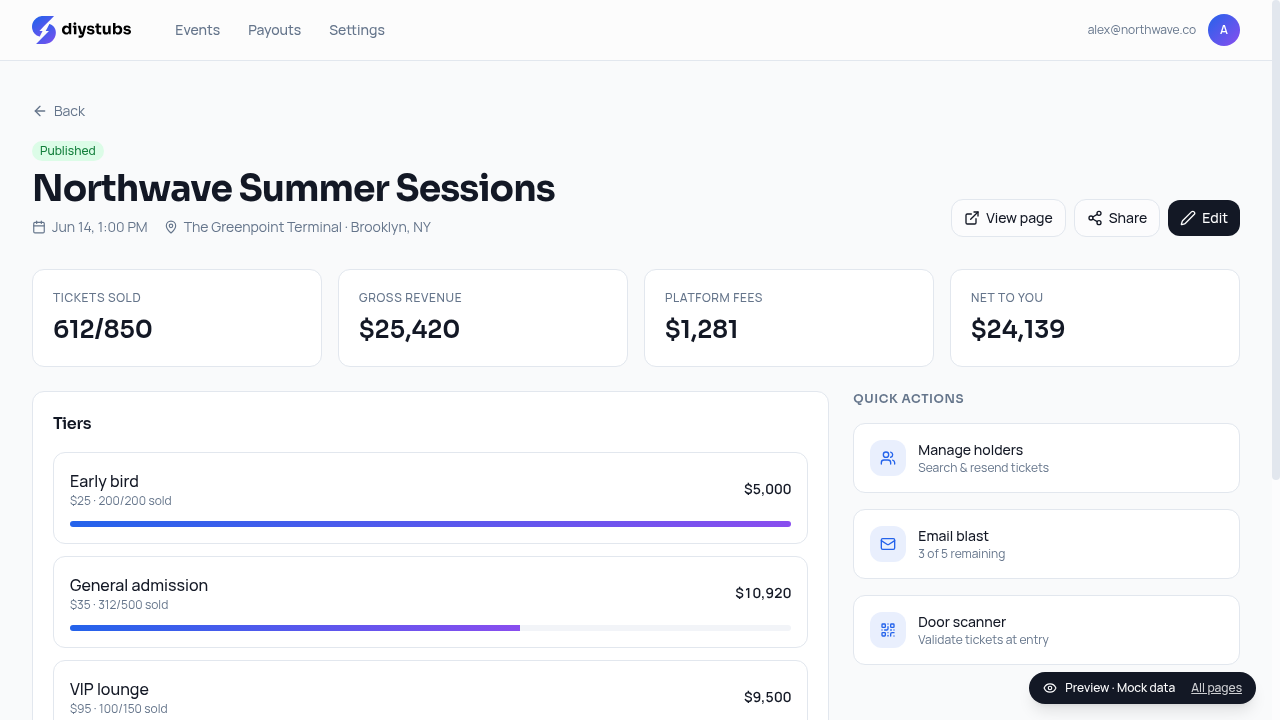
Each event can have multiple tiers: General admission, Early bird, VIP, comp, whatever you need. For each tier:
- Price: USD; set $0 for free / RSVP tiers.
- Capacity: hard cap; tier shows Sold out when hit.
- On-sale & off-sale windows: schedule tier openings and closings.
- Per-order limit: cap how many one buyer can buy.
Your public event page
Every published event gets a clean page at diystubs.com/e/your-slug, flyer, description, venue with map, and a tier picker. Buyers pay with Apple Pay, Google Pay, or card through Stripe's hosted checkout. Every fee is its own line: Stripe's card processing, the 3% platform fee only if you choose to have buyers cover it, and tax where it applies. DIY Stubs adds no other buyer fee.
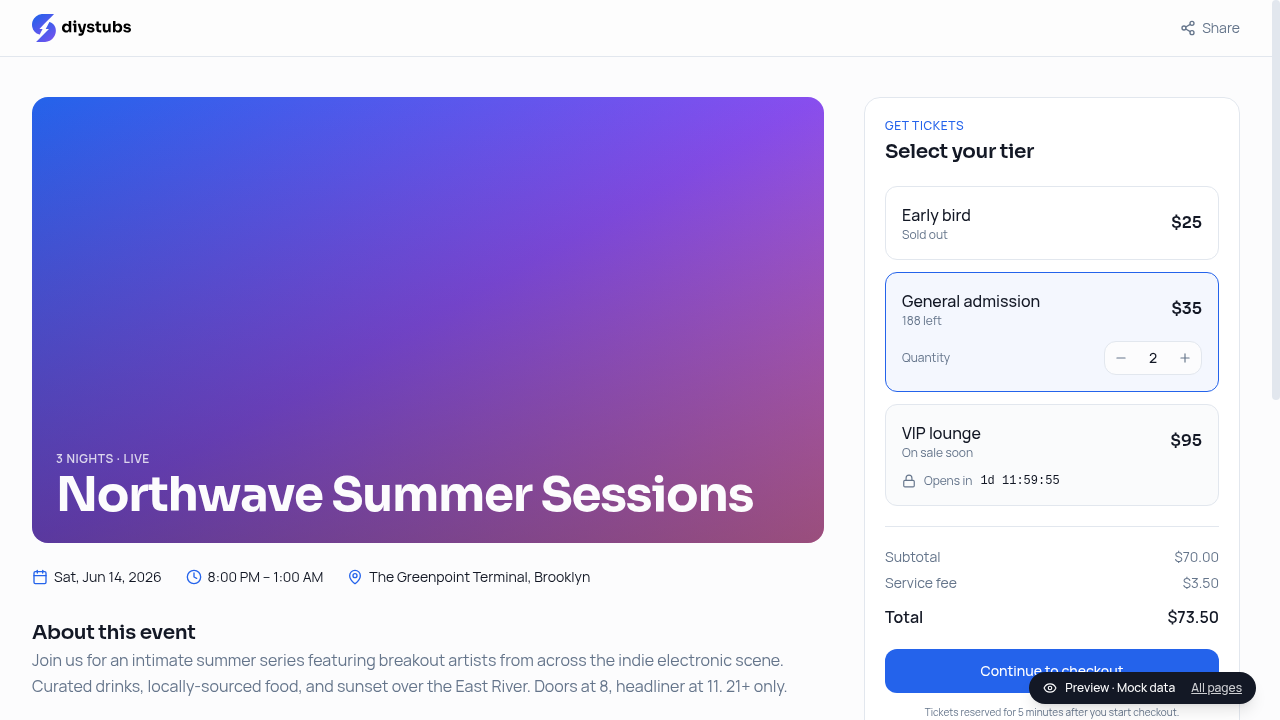
Photo gallery (Pro)
Pro accounts can add a gallery of up to 6 photos below the event description. Use it for the venue, past editions, lineup shots, or behind the scenes. Upload from Edit event, max 2MB per image, PNG, JPG, or WebP. Click any photo on the public page to open it full size.
Managing ticket holders
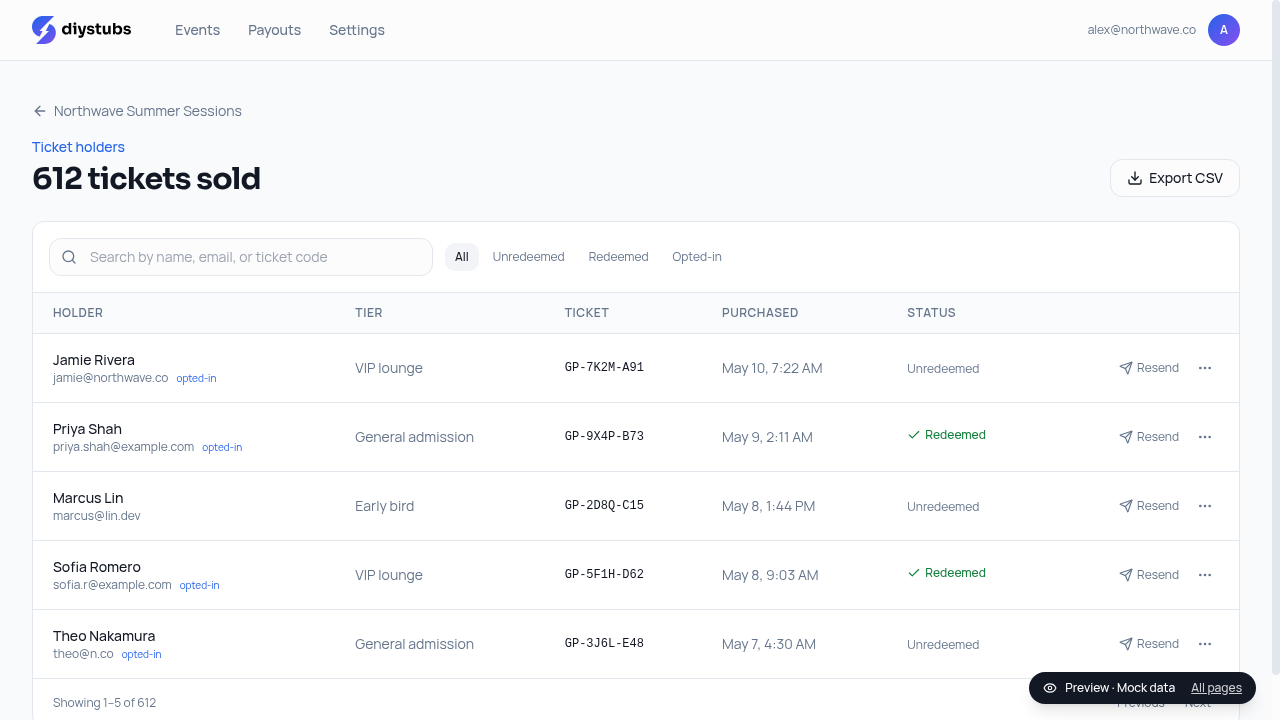
From an event, click Manage holders to see every ticket sold. You can:
- Search by name, email, or ticket code.
- Filter by tier or redemption status.
- Resend a ticket email in one click.
- Export the entire list to CSV.
Email blasts
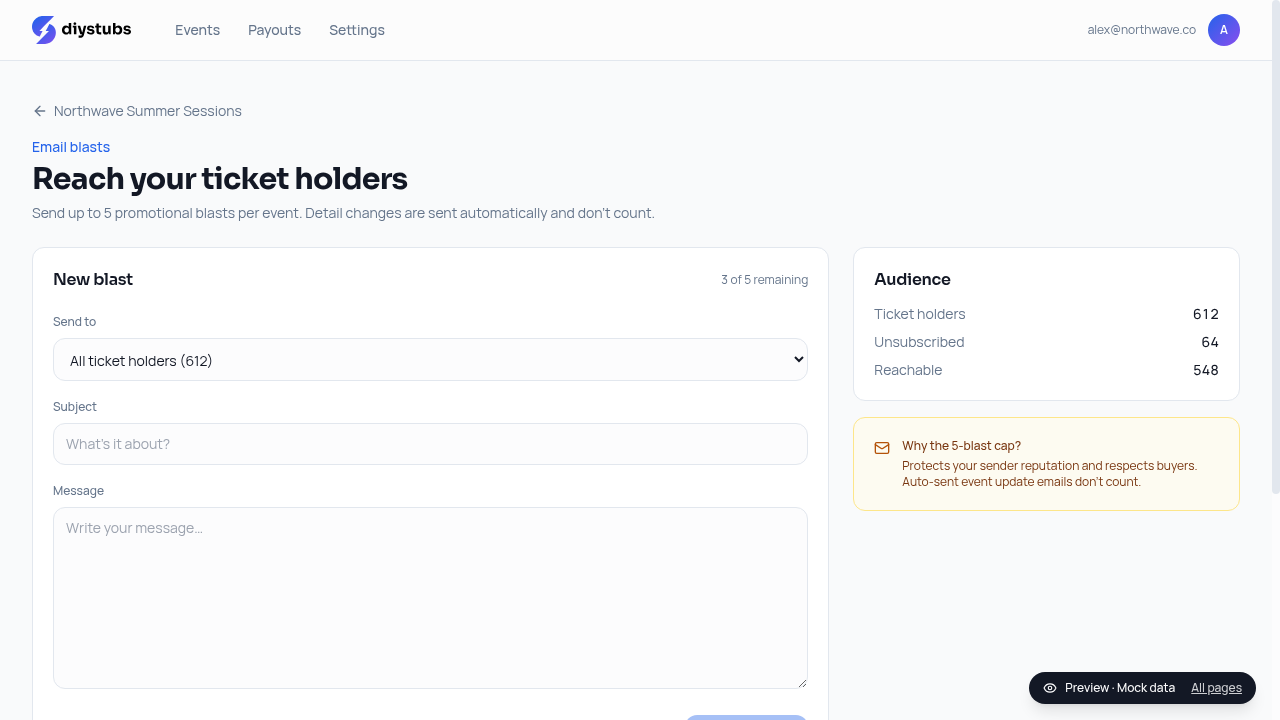
You can send up to 5 email blasts per event to buyers who opted in. Use them for set times, weather updates, doors-open announcements, or merch and aftershow news.
What doesn't count toward the cap: automatic event-change emails. Edit the venue, date, or doors after tickets are out and every ticket holder is notified automatically, at no cost to you.
In-app notifications
A bell icon in your dashboard top nav gives you real-time alerts for ticket sales, payouts sent, and Stripe action required (e.g. extra verification needed to keep payouts flowing). Click the bell to turn on browser notifications and see the same alerts on your device while DIY Stubs is open.
Attendees who buy your tickets get their own notifications too: ticket purchased, event updates you make, cancellations, and a reminder 24 hours before doors.
One account, organizer and attendee
Same login works for both sides. If you also buy tickets to other DIY Stubs events, a top-nav switcher flips you between the Organizer dashboard (events, sales, payouts) and the Attendee dashboard (your tickets, upcoming shows). No second signup, no separate password.
Door scanning
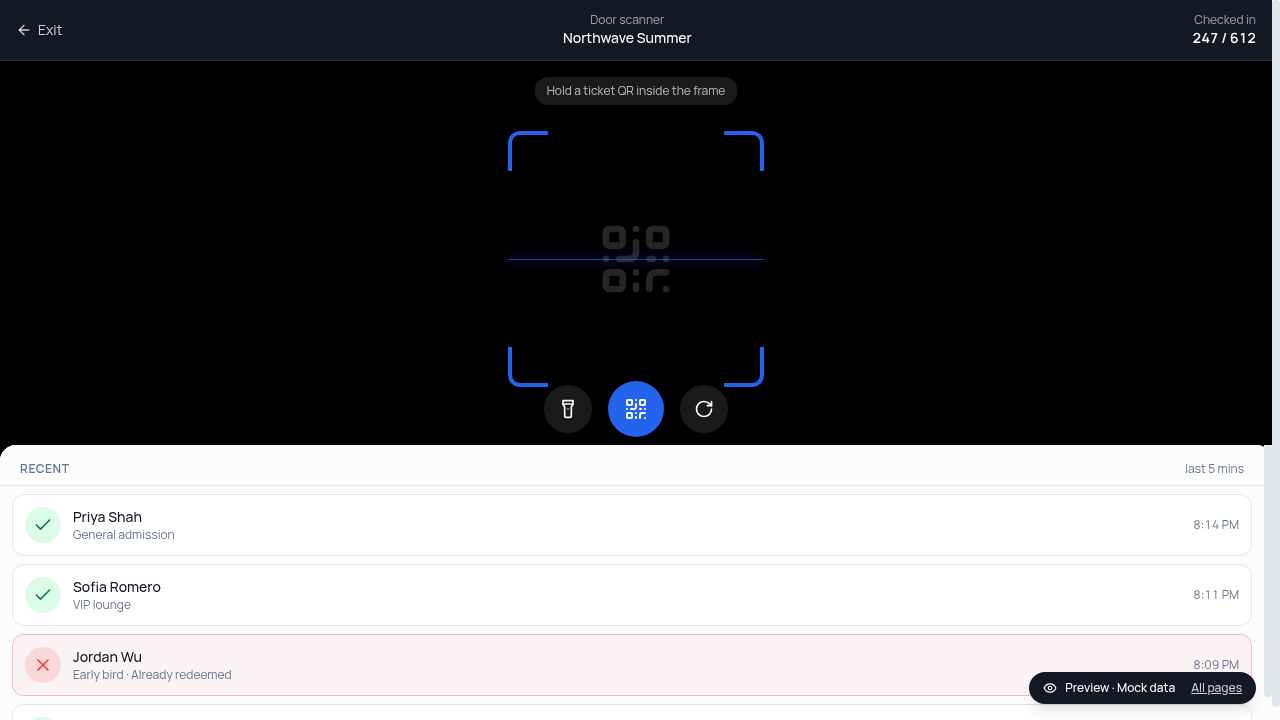
Open the scanner on any phone from Door scanner on an event page, or go to /scan while logged in. Point the camera at a ticket QR for one of three results:
- Valid (green): first scan of this code. Let them in.
- Already used (amber): this code was checked in before, on this phone or another. The first scan time and the holder's name are shown so you can sort it out at the door.
- Invalid (red): not a DIY Stubs ticket, or a ticket for a different event.
Works on any phone with a camera, from the browser. No hardware, no per-scanner fee, and no limit on door staff. The browser scanner checks each code live, so it needs a connection. If signal at your door is unreliable, print the ticket holder list as a backup. Offline check-in is coming with the iPhone app below, after its release.
The iPhone app
DIY Stubs Organizer, a free iPhone app built for the night of the show, is coming to the App Store. Once it is released, it adds a faster native scanner with a flashlight, offline check-in that syncs when signal returns, a searchable guest list with manual check-in, live check-in and sales counts for tonight's event, and push alerts for ticket sales and payouts. Nothing is sold inside the app; events, payouts, and billing stay here on diystubs.com.
Organizers will sign in with their diystubs.com account. Door staff will sign in with the email you added on the event's Scanners page and see only the Door and Guests screens for your events. We will add the App Store link here when the app is live.
Adding door staff
You don't have to share your account. From an event, open Scanners and invite anyone by email. They get an email link to a scanner-only view (first-timers set a password). They can check people in but can't see revenue, edit the event, or send blasts. No per-seat charge. Once the DIY Stubs Organizer iPhone app is released, staff can sign in to it with that same email.
Cancellations
Cancel event in the dashboard stops sales, refunds every buyer whose money is still on the platform, and emails everyone else your contact details so they can arrange a refund with you for money already paid out.
Use it for real emergencies. Repeat cancellations of paid events have serious consequences:
- 3rd cancellation of a published event with ticket sales: account suspended for 90 days (existing events keep running, no new events).
- 4th cancellation: account permanently closed, Stripe rejected.
- To stop people from signing up again, we record the legal name and date of birth on your Stripe account and your bank fingerprint. New accounts that match are closed on connection.